TechnoDoc 10.2: Log entry templates
In the new version, we focused on improving the log. Entries are now added in the log itself, without a separate window. Typical text can start from a template, so only the parts that change need typing. Entry text now supports formatting, such as color and bold. We also redesigned the side menu and removed the home page.
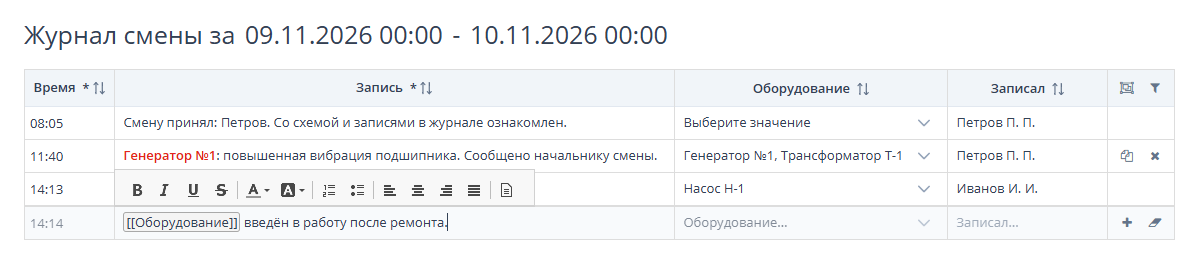
Log entries without a separate window
Users used to add each entry in a separate window that listed all log columns. A shift produces many entries, so that window was opened again and again. We removed it. Users now add an entry and fill in its data in the empty row at the bottom of the log. Default values, such as the entry time, are filled in automatically. Entry text can span several lines and be colored or set in bold.
Read more about log settings in the documentation.
Entry template reference
Many log entries follow a fixed pattern, such as "Grounding installed on …" or "Work permit No. … issued for …". Such text used to be typed from scratch each time, and the wording varied. Now an engineer collects standard texts in an entry template reference in the Information Models module.
The template picker opens from the entry cell. It groups templates by section, searches template text and lists recently used templates. The cell text is replaced with the template text along with its formatting. Later edits to a template do not change existing entries.
A template marks the parts that change from entry to entry, such as an equipment number or a time. Users click such a placeholder and enter a value, and the rest of the template text stays the same. An unfilled placeholder is framed, so the gap stays visible in the log.
Read more about entry templates in the documentation.
Side menu with page names
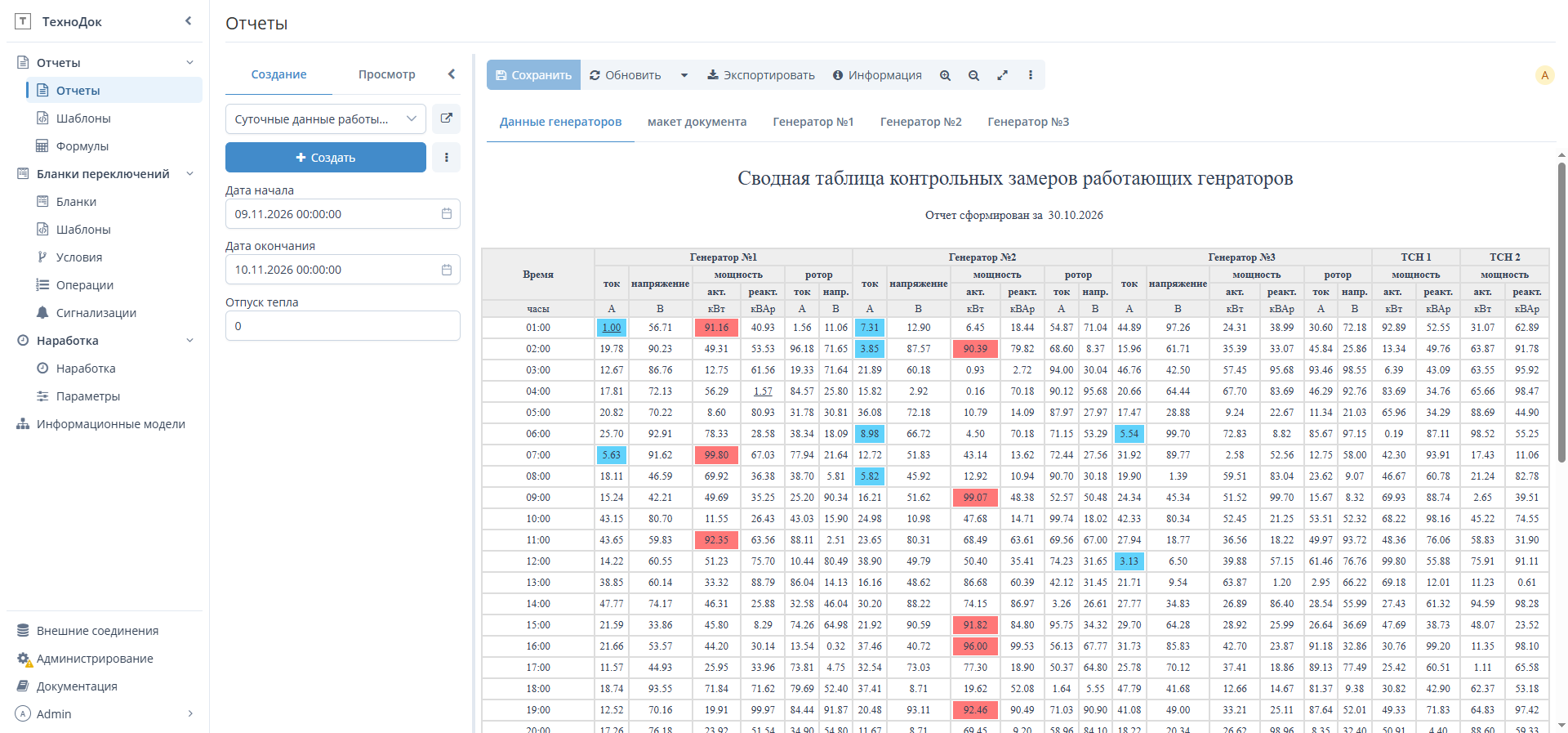
A module's pages used to appear only when the pointer hovered over its icon. The menu now shows module and page names next to the icons. Module sections expand and collapse with a click, and the item of the page that is currently open is highlighted.
The menu can be collapsed back to icons, with item names shown in tooltips. On the next sign-in, the menu opens the way it was left.
What to consider when upgrading
We removed the home page and the Application Start Page setting. After signing in, users land on the first side menu module they have access to. Nothing needs to be configured after the upgrade.
See the release notes for the full list of changes.